
Deploy Microsoft Defender for Storage with Malware Scanning and Sensitive Data Threat Detection
Join me in the first of a series on Microsoft Defender walkthroughs; this first introduction to Defender for Cloud takes it a (little) bit easy on the configuration to warm us up! We will continue our focus on configurations that can be built in lab or demo tenants, and used in subscriptions to target our testing and deployments. Let’s dive right in together here!
Azure Storage often becomes the handoff point for partners, applications, automation jobs, exports, and user-generated files. That makes it a high-value security boundary: a malicious upload, exposed blob container, or unusual access pattern can turn a simple storage account into an incident source.
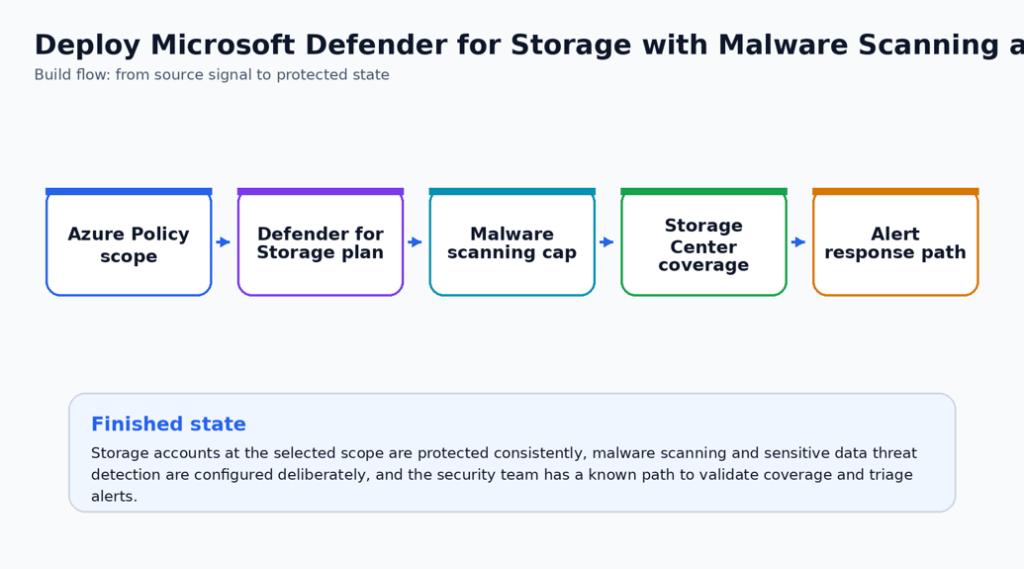
In this walkthrough, we deploy Defender for Storage in a controlled way, configure malware scanning and sensitive data threat detection, set a scanning cap for cost control, and validate coverage through Defender for Cloud and Storage Center. The result is a practical storage-security baseline that can be expanded safely across a subscription or management group.
Goal:
Enable Microsoft Defender for Storage with malware scanning, sensitive data threat detection, cost controls, and validation evidence for protected storage accounts.
What are we solving?
This build is useful when storage accounts receive files from users, partners, automation exports, or application workloads and the security team needs a native Azure control to detect suspicious activity. Defender for Storage adds threat intelligence, malware scanning, and sensitive data context without requiring a separate file-scanning platform in the application path.
The implementation should start with a pilot scope. Once the validation steps show protected accounts, expected alert routing, and acceptable scan volume, the same configuration can be moved into policy-driven deployment at a wider scope.
Security outcome
- Malicious or suspicious storage activity is more likely to create a Defender for Cloud alert instead of remaining invisible in platform logs.
- Security teams can identify protected, partially protected, and unprotected storage accounts before expanding the control.
- Cost exposure is reduced by explicitly setting and documenting the malware scanning cap instead of leaving scanning volume unmanaged.
What you will Deploy & Configure
- A subscription or management-group scoped Defender for Storage enablement model.
- Malware scanning and sensitive data threat detection configured according to Microsoft guidance.
- A monthly malware scanning cap decision recorded for cost control.
- Validation through Defender for Cloud, Storage Center, and alert evidence.
| Microsoft baseline: Use Azure built-in policy for scalable enablement. Microsoft recommends policy-based enablement because it applies a consistent configuration to existing and future storage accounts at the chosen scope. This is especially true for monthly malware scanning cap – this helps control costs. |
| Special Highlight: For high-risk upload paths, route malware scan results to an Event Grid workflow that tags or quarantines suspicious blobs. Treat this as an enhanced response workflow, not a default requirement for every storage account. |
Prerequisites
- Security Admin or Owner at the target scope.
- Storage accounts that host blob, file, or data lake workloads.
- A Log Analytics workspace or Defender XDR/Sentinel investigation path for alert review.
- A cost owner decision for malware scanning monthly caps.
Before-state checklist
Capture the before state first. This creates documentation that you and administrators can use to determine what has been changed, and helps with Change Approval Board (CAB) requests when you or your team are ready to move changes to production.
- Record the current plan, policy, connector, rule, identity, or workspace setting before making changes.
- Capture current access behavior or alert visibility so the final validation has a clear before/after comparison.
- Confirm the owner for the resource and the person who can approve rollback if the pilot exposes a dependency.
- Check whether existing logs, alerts, or recommendations already exist so the article does not confuse old data with new validation evidence.
Lab build
Use one representative storage account first. Choose an account that receives realistic file activity, but avoid starting with a high-volume production ingestion account until the scan cap, alert flow, and operational ownership are clear.
- Create a pilot resource group with one representative storage account before assigning the policy at subscription scope. Avoid starting with all production accounts when the tenant has high-volume ingestion workloads.
- In Microsoft Defender for Cloud, open Environment settings, select the subscription, and enable the Storage plan. Prefer the policy method when the scope is more than a single storage account.
- Enable malware scanning only where file uploads, partner drops, public ingestion, or user-generated content make the control valuable. Set the monthly malware scanning cap instead of leaving the decision undocumented.
- Enable sensitive data threat detection so Defender can surface suspicious access patterns involving sensitive data signals.
- Use Storage Center and Defender for Cloud coverage workbooks to identify protected, partially protected, and unprotected accounts. Remediate gaps before expanding the policy scope.
- Document storage account exceptions. Exceptions should have an owner, expiry date, and compensating control such as private endpoint enforcement or application-layer scanning.
Change-window notes
- Schedule the pilot when a resource owner can validate application behavior immediately after the change.
- Keep the first production change intentionally narrow. A smaller but verified rollout is better than a broad rollout with uncertain impact.
- Do not remove the old control path until the new validation evidence is captured and reviewed.
- For controls that can affect traffic flow, authentication, backup retention, or alert volume, pre-stage the rollback steps in the change ticket.
- Stick to the new subscription for your PoC and testing, this isolates any changes to only the testing subscription.
Use the following block as a starting point for validation or implementation. Replace names, scopes, and resource identifiers before using it in production.
az security pricing show -n StorageAccounts

# Example Sentinel/Defender investigation query after alerts begin flowing

SecurityAlert
| where ProviderName has "Defender for Cloud"
| where AlertName has_any ("Storage", "Malware", "Blob")
| project TimeGenerated, AlertName, CompromisedEntity, Severity, ProductName
Production hardening
For production, treat Defender for Storage as a subscription-level security control managed through policy. Exceptions should be rare, owned, time-bound, and reviewed with the same discipline as firewall or identity exceptions.
- Treat this control as part of the normal security operations backlog, not as a one-time portal configuration. Assign a named owner and review cadence before wider rollout.
- Use tags or a documented inventory to identify owner, environment, data sensitivity, and business criticality before expanding beyond the pilot.
- Separate deployment permission from approval permission. Security controls are stronger when one identity cannot both weaken and approve the control.
- Send logs, alerts, or audit evidence to the existing SOC workflow instead of creating a new place that nobody checks.
- Create an exception process with owner, expiry date, business justification, and compensating controls.
- Add the configuration to your normal change-management and monthly control-review process.
Operational Handoff
Here’s a short list of what would be needed to hand this off with some light process updates as listed above:
- Add the new control to the monthly security review or platform operations checklist.
- Record the expected alert owner, escalation path, and response time for findings created by the control.
- Store the validation query, screenshot checklist, and rollback notes with the service runbook.
- Review exceptions quarterly and remove any exception that no longer has a business owner or expiry date.
Finished-state Validation
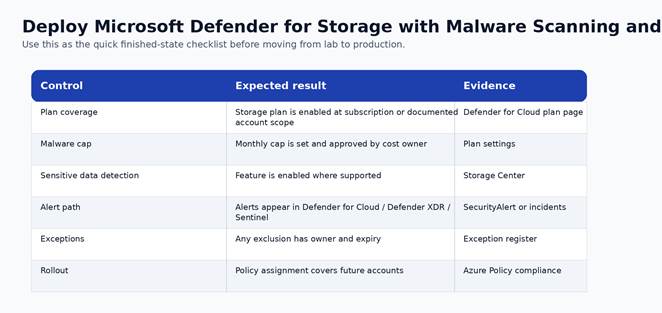
Figure 2. Finished-state validation chart for the completed build.
| Control | Expected result | Evidence to capture |
| Plan coverage | Storage plan is enabled at subscription or documented account scope | Defender for Cloud plan page |
| Malware cap | Monthly cap is set and approved by cost owner | Plan settings |
| Sensitive data detection | Feature is enabled where supported | Storage Center |
| Alert path | Alerts appear in Defender for Cloud / Defender XDR / Sentinel | SecurityAlert or incidents |
| Exceptions | Any exclusion has owner and expiry | Exception register |
| Rollout | Policy assignment covers future accounts | Azure Policy compliance |
Cost and Licensing Notes
Malware scanning is an add-on and should have a monthly cap. Microsoft documents the default malware scanning cap as 10,000 GB per storage account per month. Sensitive data threat detection is part of the Defender for Storage plan configuration and still requires licensing review.
For publication, add a tenant-specific cost note after the pilot. A good AzureTracks post should tell readers where cost can change without attempting to replace the official pricing calculator.
Known Limitations and Edge Cases
- Malware scanning is not a replacement for application input validation.
- Large-volume storage accounts should be piloted with a cap and monitored for expected scan volume.
- Coverage can be partial if features are disabled at account level or unsupported by the service configuration.
Troubleshooting
- If the control does not appear enabled, re-check RBAC at the subscription and resource scope before changing the configuration again.
- If logs or recommendations do not appear immediately, confirm documented data latency before assuming the deployment failed.
- If a production dependency breaks, stop expansion, capture the failing path, and compare it against the before-state inventory.
- If an alert is noisy, tune scope and ownership first. Do not suppress security signals globally without a review record.
Rollback or cleanup
- For lab resources, remove the pilot association, policy assignment, connector, rule, or configuration after screenshots and validation are complete.
- For production resources, rollback should be a controlled change that restores the last known-good configuration and preserves audit evidence.
- For irreversible settings, such as locked backup immutability, rollback is not available. Treat the approval step as the control point.