Microsoft Sentinel Baseline Deployment
A Practical, Microsoft-Aligned Walkthrough Series
Part 2 – Data Before Detections: Building a High-Signal Ingestion Baseline
Miss Part 1? Check it out here.
Every Sentinel problem eventually becomes a data problem.
Too much data? Costs explode.
Too little data? Detections fail silently.
Wrong data? Analysts chase ghosts.
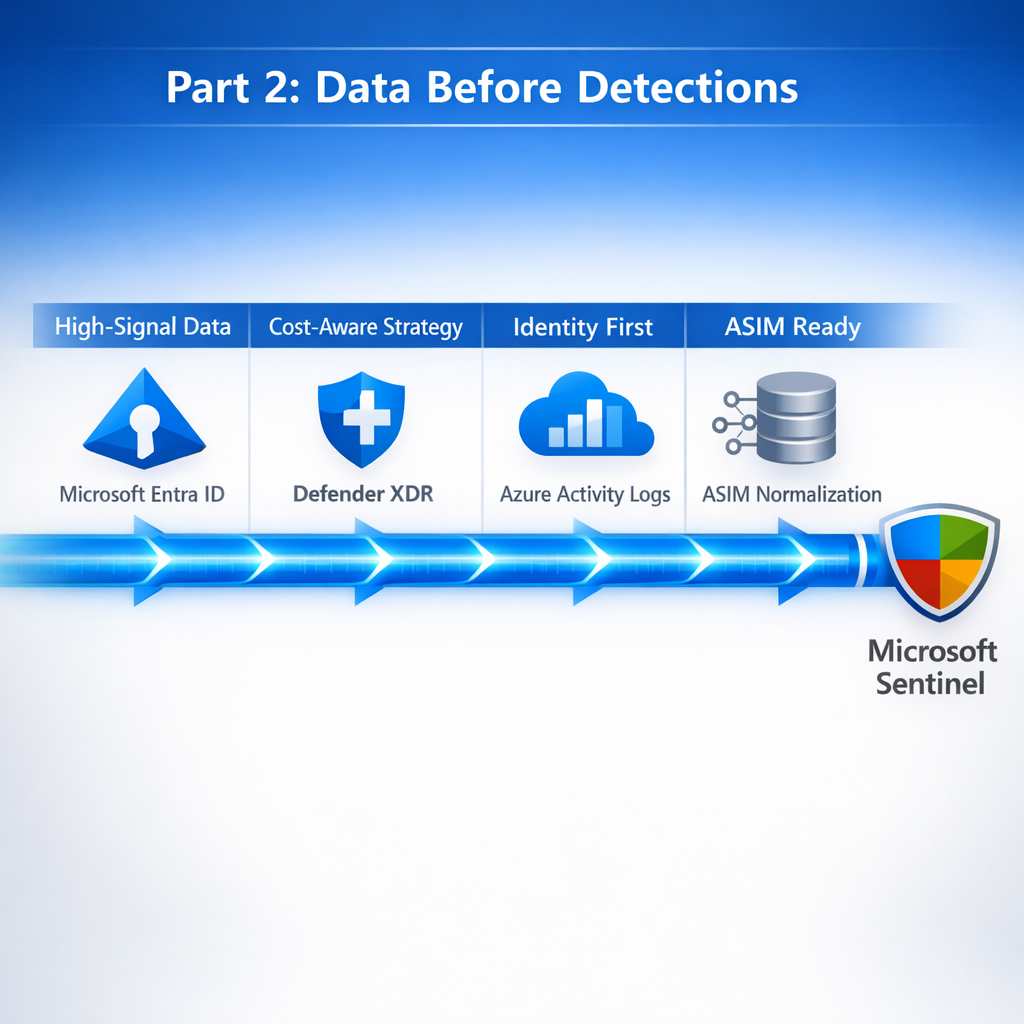
SIEM best practices are clear: connect data intentionally. In this post, we build a baseline ingestion strategy that prioritizes high-value telemetry, aligns with Zero Trust, and avoids the “enable everything” trap.
Capture the before state first. This creates documentation that you and administrators can use to determine what has been changed, and helps with Change Approval Board (CAB) requests when you or your team are ready to move changes to production.
Deploy into a test environment first. Before enabling analytics rules, Automation Rules, or Logic Apps in production, always deploy them to a sandbox or test workspace. This allows your SOC team to validate alert generation, automation behavior, and incident workflows without risking production systems. Testing first prevents accidental remediation, alert storms, or misconfigurations from impacting real users and resources.
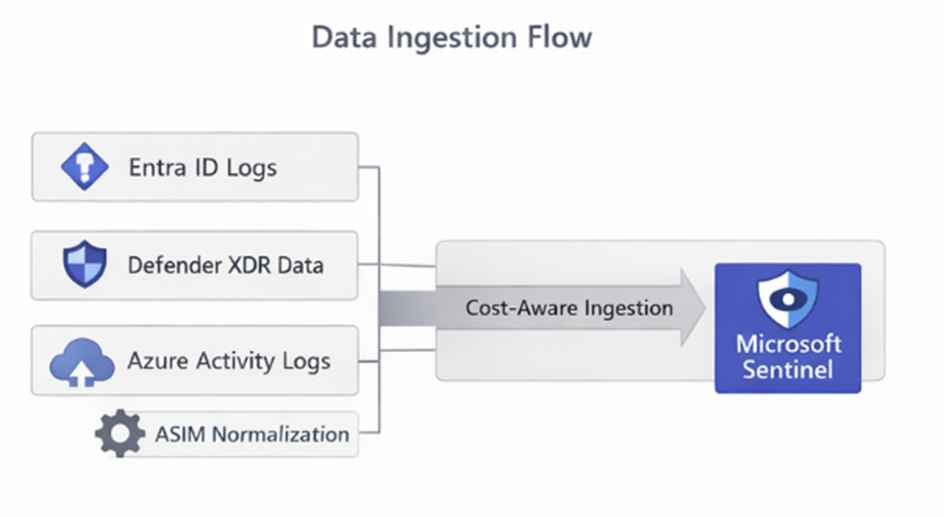
We will focus on building the baseline data ingestion in this post, and we’ll intentionally connect only data we need to start bringing activity and meaningful detections together. If you missed Part 1, go up to the top & check it out before proceeding. In each of the 3 in this mini-series I build on the last post, so you may need to customize the queries or other resources as you go through if you skipped a few steps along the way. As always – are you in the test environment?
Step 1 – Start with Identity (Always)
Enable Entra ID Logs
- Sentinel → Data connectors
- Open Microsoft Entra ID
- Enable:
- Sign-in logs
- Audit logs
These logs underpin:
- Identity detections
- Conditional Access analysis
- Almost every investigation you’ll ever run
Validate Ingestion
SigninLogs
| summarize Count = count() by bin(TimeGenerated, 1h)
If this query returns nothing, stop and fix ingestion.
Step 2 – Defender XDR (Use Native Connectors Only)
Enable Defender connectors only if the service is licensed and in use:
- Defender for Endpoint
- Defender for Identity
- Defender for Cloud Apps
- Defender for Office 365
Avoid:
- Custom ingestion
- Duplicate pipelines
- Preview connectors in production
Step 3 – Azure Activity Logs (But Be Selective)
Enable Azure Activity logs for:
- Subscription-level operations
- Role assignments
- Resource deletions
Then validate:
AzureActivity
| where OperationNameValue contains “MICROSOFT.AUTHORIZATION”
| summarize count() by OperationNameValue
This data is invaluable during incident response.
Step 4 – Cost-Aware Data Strategy
Microsoft-Aligned Guidance
- Filter at the source
- Use Basic Logs for:
- High-volume network data
- DNS telemetry
- Apply table-level retention
Example:
.show table AzureActivity retention
Step 5 – Enable ASIM (Do This Early)
ASIM allows detections to survive:
- Schema changes
- Source replacements
- Vendor migrations
Confirm ASIM readiness:
ASimProcessEventLogs
| summarize count()
If this returns results, you’re on the right path.
Step 6 – Apply Table-Level Filtering and Connector-Level Suppression
Why it Matters
- Reduces ingestion cost for high-volume logs (e.g., Entra ID, Defender, Azure Activity)
- Eliminates alerts that are irrelevant for your environment
- Makes downstream analytics and hunting queries more accurate
Walkthrough
- Entra ID / Defender Connector
- Go to Data connectors → Connector settings
- Enable filtering options:
- Only include success/failure log types relevant for your detections
- Exclude service accounts if not needed for monitoring
- Azure Activity / Subscription Logs
- Filter by resource group, resource type, or operation name
- For example, skip read-only operations like Microsoft.Storage/storageAccounts/listKeys/action if not needed
- Validation Query
Heartbeat
| summarize Count = count() by Computer
| order by Count desc
- Use this to confirm that only expected resources are reporting
- Helps detect accidental over-ingestion or duplicates
Benefits
- Reduces unnecessary log ingestion cost
- Increases signal-to-noise ratio for detections
- Provides a clean foundation for automation and alerting
Identity Pivot: Rare Conditional Access Bypasses
Let’s jump right into this query:
//Detect successful sign-ins that bypass Conditional Access in unusual ways — a common post-compromise technique.
SigninLogs
| where ResultType == 0
| where ConditionalAccessStatus == “notApplied”
| summarize
Signins=count(),
IPs=dcount(IPAddress),
Apps=make_set(AppDisplayName, 5)
by UserPrincipalName, bin(TimeGenerated, 1d)
| where Signins > 3
| order by Signins desc
This query helps identify the following:
- Conditional Access gaps are frequently abused
- Highlights misconfigurations and attacker exploitation
- Excellent follow-up to impossible travel detections
Part 2 Takeaway
You now have:
- High-signal data
- Predictable ingestion costs
- A normalized schema foundation
Now—and only now—are detections meaningful.
Watch for the next & final installment in this mini-series posted right here on AzureTracks.com!