Skip to content

AzureTracks

Real world business tracks leading towards Azure Services

  • Home
  • About Me
  • Privacy Policy
  • SoundCloud
  • AzureTracks Videos

How to Remove an Email Account from Windows 10 Email & Accounts

  • Home
  • 2020
  • April
Disconnect email account in Windows 10
Andrew Posted on April 17, 2020 8:26 pm 0 Comments

How to Remove an Email Account from Windows 10 Email & Accounts

Today’s tip is something that had me stumped for a few minutes, finding it difficult to track down how to remove an old email account from Windows 10. When adding an account to Outlook, the credential will appear in the Windows 10 Settings > Email & Accounts. Though not Azure focused, you can run into this in a Windows 10 virtual desktop within Azure.

Now, removing most accounts is pretty straight forward as you simply select the account and choose Manage, then remove it. If it is a ‘work’ tagged account and the account is disabled, it will not be so obvious — but now you can find the instructions in one spot!

Have you seen this awesome reminder after an account gets disabled?
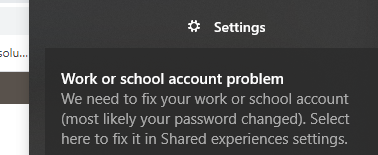
Open up your settings in Windows 10.
Hint: The clue is hiding in plain sight in the error message.
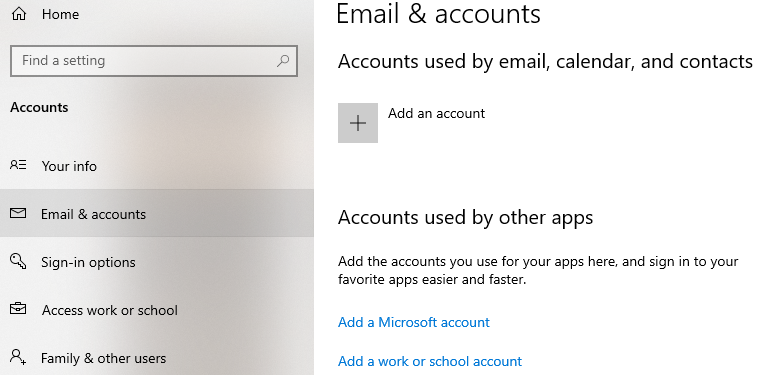
Instead of Email & Accounts, click on Access Work or School.

Next, click on the account and click on Disconnect, then select Yes at the prompt. Done!

It was easy to do, but some account options are not able to be managed once disabled forcing us to use this disconnect option instead.

Normally, this is not really an issue for me as I tend to use virtual machines to separate work and play, but in this case there was an email account added to my ‘everyday’ use Windows 10 profile. Windows 10 makes virtual desktops really easy, and virtual machines make isolating work even easier, but in this case I had to remove a disabled account. Hopefully this saves you a few minutes and some frustration!

Bonus Tip if you read all the way to the bottom:
Windows 10 Virtual Desktops
Create = WIN + CTRL + D
Move Between Them = WIN + CTRL + < or > (Arrow Keys)
Delete = Press the Task Button in the Taskbar, then Click the X beside the remote desktop you wish to delete. Careful, it just deletes when you click it!

Post navigation

How to get Security Alerts for Environments in Azure DevTest Labs
Virtual Machine Scale Sets – What are they for anyways?

Recent Posts

  • Azure Updates – Number 137 – May 16, 2026
  • Microsoft Sentinel Baseline Deployment: From Zero to Operational SOC
  • Azure Updates – Number 136 – May 2, 2026
  • Securing Secrets with Azure Key Vault
  • Azure Updates – Number 135
Tweets by azuretracks

Categories

  • Application Gateway (5)
  • Arc (2)
  • Automation (22)
  • Azure (313)
  • Azure Active Directory (21)
  • Certification (3)
  • CLI (16)
  • Compute (139)
  • Cost Optimization (17)
  • Data Replication (6)
  • Entra ID (11)
  • Firewall (3)
  • Governance (27)
  • IaaS (8)
  • KQL (6)
  • Load Balancer (5)
  • Migration (15)
  • Monitoring (22)
  • Optimization (23)
  • Paas (4)
  • PowerShell (23)
  • Pre-Migration (14)
  • SaaS (1)
  • Scale Sets (1)
  • Security (71)
  • Security Copilot (63)
  • Sentinel (210)
  • Storage (22)
  • Uncategorized (1)
  • Virtual Machines (10)
  • Virtualization (31)
  • Windows Server (12)

Recent Tags

aad adx aks asr automation azure azureapi azurecloud azurenews backup copilot costalert cybersecurity ddos defender demo governance howto kql lighthouse mfa Microsoft Defender Microsoft Defender XDR Microsoft news Microsoft Sentinel monitor netapp news news roundup playbook PowerShell product updates resource groups retention security security blog sentinel siem soc sql TI virtual machine vnet XDR platform zerotrust

2026 AzureTracks

Theme Yala Mag by YalaThemes